How to Share WiFi Using QR Code on Android, iPhone & PC
Published on · 8 min read · By OnlineQRCodeGen Team
Share WiFi Password Instantly with QR Code
Create a WiFi QR code that allows users to connect instantly without typing passwords. Perfect for homes, cafes, offices, and events — works on Android and iPhone.
- ✔ Connect to WiFi without typing password
- ✔ Works on Android, iPhone & all modern devices
- ✔ Ideal for guests, customers & public spaces
- ✔ Fast, secure, and 100% free
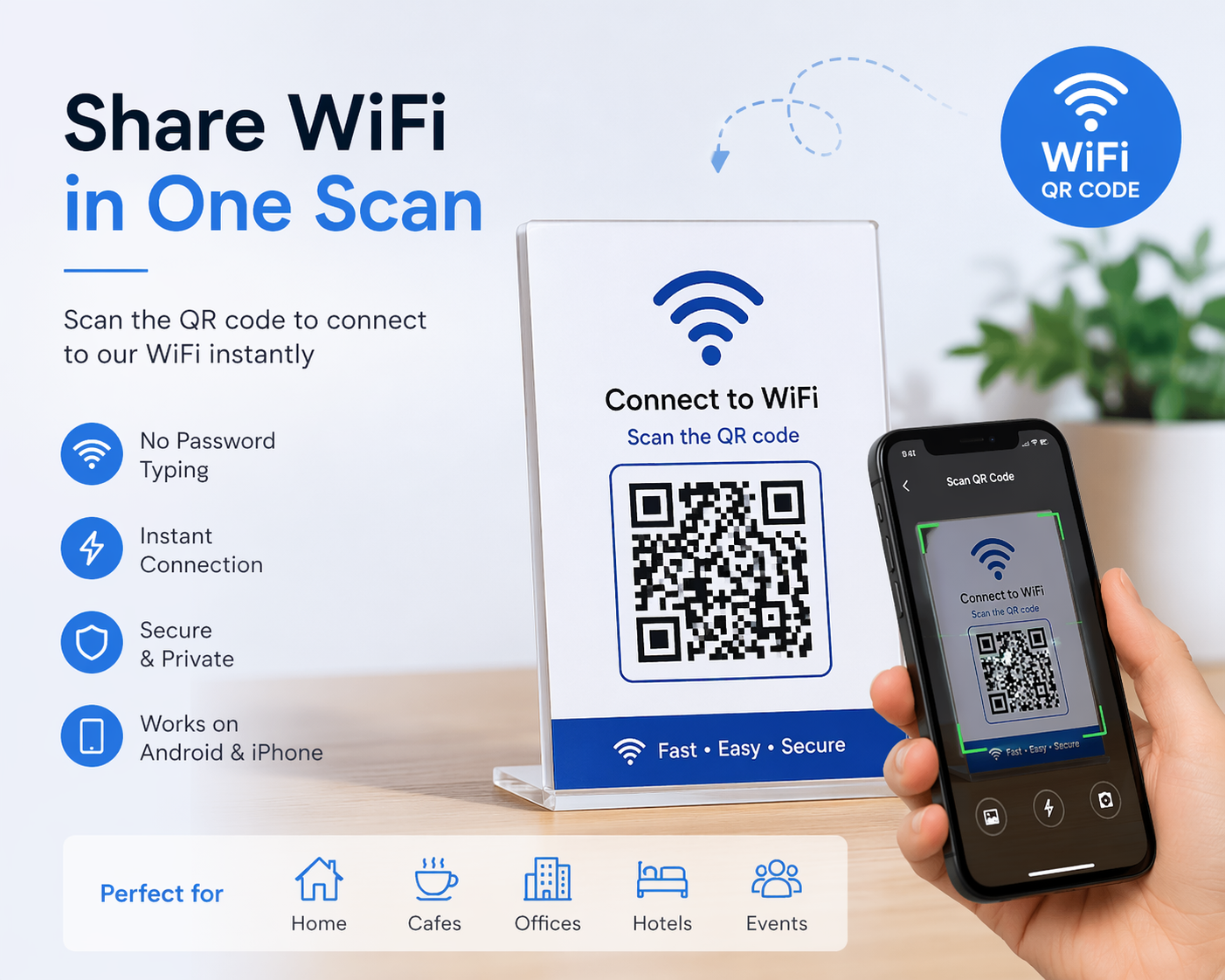
A WiFi QR code stores your network name and password securely. When scanned, users can connect to your network instantly without manual entry. This improves user experience and is widely used in homes, restaurants, hotels, and offices.
Use our WiFi QR Code Generator to create QR codes instantly. You can also explore SMS QR codes, call QR codes, and UPI payment QR codes for different use cases.
Sharing your WiFi password doesn’t have to be frustrating. Instead of typing long passwords, you can use a WiFi QR code to let users connect instantly with a simple scan.
In this guide, you’ll learn how to share WiFi using QR codes on Android, iPhone, and PC, along with troubleshooting tips and best practices.
What Is a WiFi QR Code?
A WiFi QR code stores your network name (SSID), password, and encryption type. When scanned, the device connects automatically — no typing required.
How to Share WiFi Using QR Code on Android
- Open Settings
- Go to WiFi
- Select your connected network
- Tap “Share”
- Authenticate (PIN/Fingerprint)
- Show QR code
How to Share WiFi Using QR Code on iPhone
iPhones don’t generate QR codes directly, but you can:
- Use automatic password sharing
- Or create a QR using an online tool
👉 Use our WiFi QR Code Generator to create one instantly.
How to Share WiFi Using QR Code on PC
On Windows or Mac, you can generate a QR code using an online tool and share it with others.
WiFi QR Code Format
WIFI:T:WPA;S:YourNetworkName;P:YourPassword;;
WiFi QR Code vs Manual Password
| Method | Speed | Ease | Error Risk |
|---|---|---|---|
| QR Code | Instant | Very Easy | Low |
| Manual Password | Slow | Medium | High |
WiFi QR Code Not Working? Fixes
- Check password accuracy
- Ensure correct encryption type
- Use another scanner app
- Increase screen brightness
Where to Use WiFi QR Codes?
- Homes
- Cafes & Restaurants
- Hotels
- Offices
- Events
Related Tools & Guides
Frequently Asked Questions
Is WiFi QR code safe?
Yes, if shared with trusted users. Avoid public misuse.
Do all phones support WiFi QR codes?
Most modern devices support QR scanning.
Can I change my WiFi password later?
Yes, but you must generate a new QR code.
Is it free?
Yes, you can create WiFi QR codes for free.